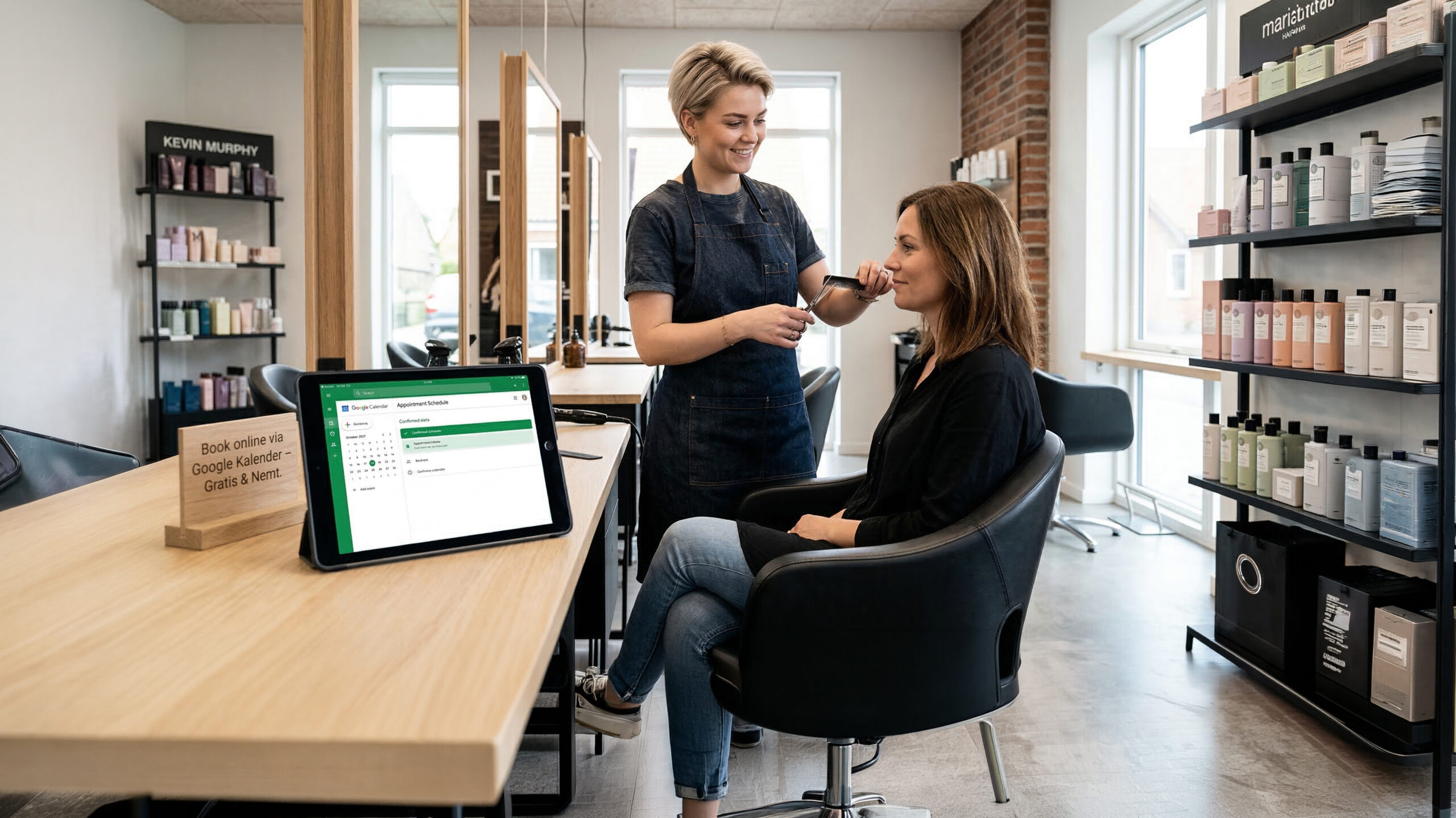
Are you a hairdresser, massage therapist, therapist, or another local service provider? You might think that a professional online booking system is expensive and technically complicated. However, you likely already have access to a powerful and free (or very cheap) tool that can do the job for you.
Why an Online Booking System is Worth Its Weight in Gold
Before we dive into the how, let’s establish why this is so important for your business.
- You are Always “Open”
Customers can book appointments at 10 PM from their sofa. You won’t lose the customer who is too busy to call during your normal opening hours. - Professional Appearance
It signals that you are a serious, modern business that has things under control. This builds trust. - Less Administration
Stop writing appointments down on sticky notes. Bookings land directly in your calendar. - Fewer “No-Shows”
The system sends automatic email reminders to the customer (and yourself), drastically reducing the number of forgotten appointments.
Google Calendar to the Rescue
Most people know Google Calendar for private appointments. But Google has a built-in feature called “Appointment Scheduling,” designed specifically for you.
It is essentially a personal booking page that you can set up in 20 minutes. You define which services you offer (e.g., “Men’s Cut – 30 min,” “Deep Tissue Massage – 60 min”) and when you are available. Then, you simply share a link.
When a customer clicks the link, they see your available time (and only your available time), choose a slot, and enter their details. Presto – the appointment is in your calendar.
What Does It Cost?
This is where it gets really good for those on a tight budget:
- Completely Free (Personal Google Account)
If you have a standard free Gmail account, you can create one booking page. This is a fantastic way to start and covers many people’s needs. - Very Cheap (Google Workspace Individual)
For a small monthly fee, you get access to premium features. This is the solution we recommend. Here, you get automatic email reminders, the ability to collect more customer information, and unlimited booking pages (e.g., one for “Haircut” and one for “Initial Consultation”).
How to Get Started in 20 Minutes
Time needed: 20 minutes
Ready to get your own booking page? Follow these steps. You don’t need any technical skills – just your computer and your Google account.
- Create a Google Account
If you don’t already have one, you’ll need to create an account. You can create a free personal account or a paid business user via Google Workspace.
Note: If you have employees who also need to be booked, I recommend using Google Workspace, as Appointment Scheduling must be set up for each employee individually. - Open Your Google Calendar
Go to Google Calendar on a computer. You cannot create or manage appointment schedules on a phone or tablet (though you can check your bookings there).
- Create a Service
In the left-hand menu, you will see a heading called “Booking Pages.” Click the “+” to create a service that your customers can book.
- Enter Service Details
Title: Make it clear what the customer is booking (e.g., “Men’s Cut” or “Consultation”).
Duration: Choose how long the appointment takes (e.g., 45 minutes).
General Availability: Tell the system when you are actually at work and ready to receive bookings (e.g., Monday-Friday, 9:00 AM – 5:00 PM).
Scheduling Window: Set how far in advance customers can book (e.g., no more than 60 days out).
Booked Appointment Settings: Give yourself a break! Set a “buffer time” (e.g., 15 minutes) between appointments so you can tidy up or grab a cup of coffee.
Smart Tip: Google Calendar automatically checks your other calendar events. If you have a dentist appointment at 2 PM, the system will automatically remove that time slot from your booking page so you don’t get double-booked. - Adjust Booking Settings
Click through (usually labeled “Next”) to fine-tune:
Booking Form: Choose what the customer must enter. The default is “First Name,” “Last Name,” and “Email.” Add “Phone Number” so you can reach them if needed. - Implement Your Booking Link
Once you save, you get a unique link for your new booking page.
Add it to your Google Business Profile: The most important place!
Add it to your Facebook Page: Put it under the “Book Now” button.
Put it in your email signature.
Send it via SMS: If you have an iPhone or Android, you can set up “Quick Responses” for when you can’t take a call. For example: “Hi! I’m with a client right now. You can see all my available times and book directly here: [Your Link].”
Tip: Create a QR code with your booking link and hang it in your window or put it on your business card. Customers can scan it and book a time even when you are closed.
What Can’t It Do?
Google Appointment Scheduling is a great tool, but it’s not an all-in-one miracle. It’s important to know the limitations:
- Payment: It cannot handle payments. Customers cannot pay in advance through the system. You still need to use MobilePay, a card terminal, or send an invoice.
- Advanced Records: It is not a client management system (CRM) for writing in-depth clinical notes. It only handles the appointment itself.
- Multiple Employees: It is designed for individuals (perfect for solo entrepreneurs). If you are three hairdressers in a salon with individual calendars, it becomes complicated and may not be the right solution.
Frequently Asked Questions (FAQ)
No! That’s the beauty of it. Anyone with an email address can book through your page.
Yes! You can either link to the booking page with a button or “embed” the entire booking calendar directly onto your site so it looks fully integrated.
Functionally, they are very similar. Calendly has more advanced features in its paid versions (e.g., complex booking rules). However, if you are already in the Google ecosystem, Google’s own solution is more seamless and often cheaper.
If upfront payment is a requirement for your business (e.g., to avoid no-shows for expensive treatments), you should look at dedicated systems like Planway or use a service like Stripe/PayPal alongside Google.